

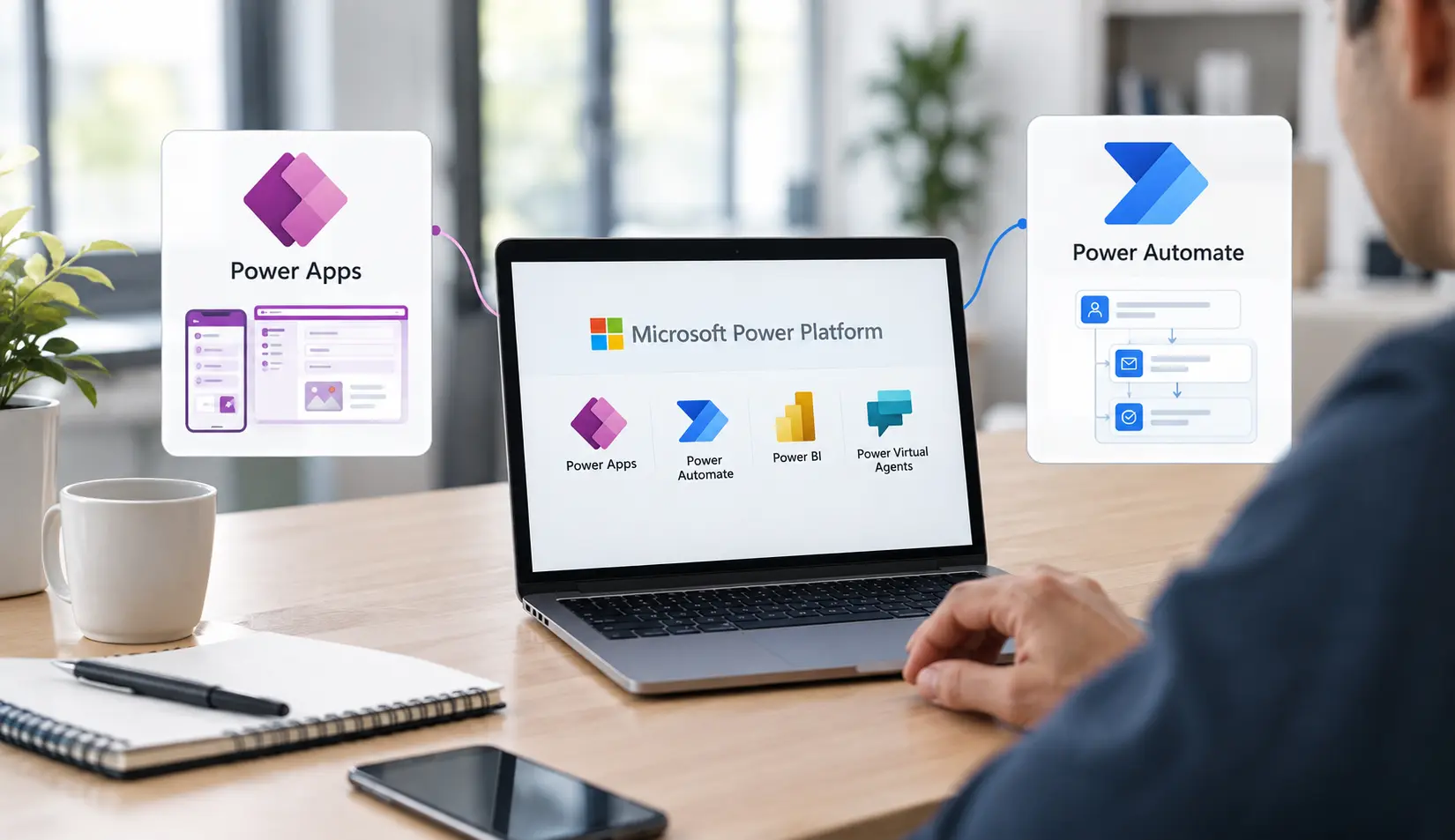
Power Apps vs Power Automate: Which Microsoft Tool Does Your Business Need?
Summarize and save time
Businesses in the 21st century know they need to modernize manual business processes, but they don’t know how. They are unsure which Microsoft Power Platform tool to use, whether to use Power Apps for custom application development, Power Automate for automating repetitive work, or a mix of both.
Just like every other problem, the answer to this problem depends on the challenge you are trying to resolve. You need to clearly identify your use case and problem statement before choosing the Microsoft tool. Based on this identification, you can choose one or use both collectively.
In this blog, we aim to help you make the right and informed choice by explaining the difference between Power Apps and Power Automate. We will look at the feature comparison, the practical use cases, and the business benefits of using Power Apps development services.
Power Platform Statistics and Market Outlook
Let’s look at some of the statistics that indicate the reason for the rising adoption of Microsoft’s low-code ecosystem among businesses.
- Microsoft Power Platform has reached 56 million monthly active users across 97% of the Fortune 500 companies.
- The Microsoft 2026 release updates include deeper integration between Power Apps and Power Automate, including the ability to launch interactive Power Apps from desktop flows.
- The market size is projected to exceed $30 billion in 2026, growing to $58.2 billion by 2029.
- The future of Power Platform is focused on intelligent automation, autonomous AI, and seamless collaboration between humans and technology.
What is Power Apps?
Power Apps is the low-code application development platform of Microsoft that enables organizations to offer customized business applications. The distinctive feature is that customization is possible without building features from scratch with traditional programming.
Using Power Apps, businesses can develop applications for:
| Using Power Apps, businesses can develop applications for: |
|---|
| Processing or raising employee requests. |
| Conducting field service inspections. |
| Keeping a real-time track of inventory. |
| Managing sales activities and expense submissions. |
| Customer onboarding and quality inspection. |
| Managing leaves and attendance. |
| Project and task management. | Asset tracking. |
Power Apps applications can be easily connected to Microsoft Dataverse, Excel, SharePoint, SQL Server, Dynamics 365, Salesforce, SAP, and several other data sources using connectors and APIs.
Types of Power Apps
Power Apps development services incorporate distinct types of Power Apps based on the project needs, such as:
| Canvas Apps | Power Pages | Model-Driven Apps |
|---|---|---|
| In Canvas apps, developers can easily place the controls anywhere on the screen and customize interfaces for distinct devices and workflows. This is possible because of its flexible design experience. | When it comes to external-facing websites or portal development, Power Pages is the ideal solution. | Mobile-driven apps are designed around Dataverse data, forms, relationships, tables, views, dashboards, and business processes. |
Canvas apps are ideal for applications with the following requirements:
|
These sites are used by customers, partners, and suppliers to submit information and interact with selected business data. | These apps are useful for structured application development, such as:
|
Here are the common business needs that Power Apps can solve:
- Search records
- Enter information
- View dashboards and update business data
- Submit requests
- Complete tasks
- Access a process from a desktop or mobile device
Synopsis: For a business with the core requirement of “we need a user-friendly application,” Power Apps is the right starting point. At Prakash Software Solutions, our Power Apps consulting services can help you with end-to-end development.
What is Power Automate?
As Microsoft’s workflow automation platform, Power Automate assists organizations in connecting distinct business applications, automating repetitive and monotonous tasks, and promoting informed actions based on events and real-time insights.
A Power Automate workflow starts and executes actions in the following instances:
| Flow Starts When | Flow Performs Action When |
|---|---|
| When there is a new item addition to the SharePoint list. | Send an email to the team about the same. |
| A customer fills out and submits a form. | Create an approval request. |
| An email has been received. | Update the database with a specific query. |
| A file is uploaded, and there is a record change in Dataverse. | Send a message to teams and generate a document. |
| A user selects a specific button in Power Apps. | Send a call request to an external API. |
| An API request is sent by an external system. | Update a CRM record. |
Types of Power Automate Flows
There are 5 distinct types of Power Automate Flows based on the business needs for Power Automate development services. These are broadly classified into:
Automated Cloud Flows
In cases when a defined event occurs, these flows trigger automatically. For instance, when a new expense request is submitted, a flow notifies the manager.
Instant Cloud Flows
These are manually triggered flows that can be started from Power Apps, the Power Automate interface, Teams, or SharePoint.
Desktop Flows
In the case of computers and applications that don’t have modern APIs, desktop flows help automate actions. Using robotic process automation, these flows can interact with websites, desktop software, spreadsheets, and legacy systems.
Scheduled Cloud Flows
These flows are scheduled to be executed at a specific time or interval. For instance, record synchronization every night, sending weekly reports, and so on.
Business Process Flows
In business process flows, users are guided through standardized stages. These flows are especially useful in cases where employees need to follow a consistent process, such as customer onboarding, lead qualification, etc.
Power Automate consulting services can be highly valuable in businesses with the following core requirements:
- Move information from one system to another.
- Route this specific request for approval.
- Send the right notification at the right time.
- Remove repetitive manual work.
Synopsis: Power Automate focuses on the workflow layer, which is why it’s best suited for cases that mention, when this happens, do that.
Power Apps vs Power Automate Comparison
| Distinguishing Factor | Power Apps | Power Automate |
|---|---|---|
| Purpose | Design business applications. | Automate business workflows. |
| Main user base |
|
|
| Output |
|
Automated flow or process. |
| Interaction | User interaction directly with screens. | Actions are executed in the background. |
| Data Role | Collect and display data. | Move, update, and process data. |
| Interface and Integration | Central features connecting to data sources. | Optional while connecting services. |
| Best suited for | Modernizing applications. | Process automation. |
| Development Approach | Visual app design. | Visual workflow design. |
| Examples |
|
|
Key Features of Power Apps and Power Automate
| Key Features of Power Apps | Key Features of Power Automate |
|---|---|
| Low-Code App Development With Power Apps, developers and makers can design applications using formulas, reusable components, visual controls, and connectors. |
Workflow Triggers
Power Automate supports the following types of workflow triggers:
|
Data Connectivity
Power Apps can seamlessly connect with:
|
Connectors Connectors facilitate flows to interact with Microsoft services and third-party applications. Based on the licensing and integration needs, you can choose between standard and premium connectors. |
| Mobile and Desktop Access Power Apps help to design applications for desktop browsers, tablets, and mobile devices. This is a useful feature for field workers who require access to vital business information away from their desks. |
Notifications
Power Automate can automatically send messages and updates through:
|
Security and Permissions
Power Apps can use either of this to determine what users can see and do:
|
Robotic Process Automation Without the use of suitable APIs, desktop flows can assist in automating repetitive tasks in legacy applications. |
AI and Copilot Capabilities
Microsoft continues to release several AI-assisted development features helping users to:
|
Monitoring and Analytics
Using Power Automate, teams can get a broader visibility and review of:
|
Custom User Experiences
Instead of using generic tools, businesses get to customize the following around their actual processes:
|
Conditional Logic In case of supporting more complex business rules, flows can use conditions, loops, switches, parallel branches, and error-handling paths. |
Use Cases of Power Apps and Power Automate
Power Apps is mainly used when users need an application to complete a specific task. The most common uses of Power Apps include:
- Designing a mobile application for field teams.
- Replacing paper-based forms with mobile applications.
- Managing inventory, assets, and inspections.
- Building an internal request system.
- Providing a user-friendly and custom front-end experience.
- Building a portal for customers and partners.
Power Automate is mostly used when the primary goal is to move information, trigger an action, or automate a repetitive process. The most common uses of Power Automate include:
- Generating documents and managing approvals.
- Synchronizing systems and sending automated notifications.
- Moving files between folders.
- Updating records and sending reminder emails.
- Automating scheduled reporting.
Power Apps vs Power Automate: Benefits and Limitations
Let’s first evaluate the positives of both of these Microsoft Power Platform tools.
| Benefits of Power Apps | Benefits of Power Automate |
|---|---|
| Supports the agile development of custom business applications. | Quick automation of repetitive tasks. |
| Provides desktop and mobile support. | Supports notifications, approvals, and synchronization. |
| Offer better user experience as compared to generic forms and spreadsheets. | Seamlessly connects Microsoft and third-party services. |
| Interaction | Enables business users to automate repetitive processes. |
| Promotes strong Microsoft ecosystem integration. | Provides reusable templates and connectors. |
Unlike every other tool or technology, there are downsides to the use of Power Apps and Power Automate as well. Let's look at them:
| Power Apps Limitations | Power Automate Limitations |
|---|---|
| The development of complex applications requires professional development skills. | It can be difficult to manage complex flows. |
| There can be chances of slow performance resulting from poorly designed apps. | Licensing and connector limitations can affect overall design. |
| Licensing requirements can be difficult to manage. | In case of interface changes, desktop automation can be challenging. |
| Careful planning is necessary for data architecture and security. | Poor error handling can lead to incomplete processes. |
| Custom APIs or code components might become necessary for large-scale applications. | High-volume flows demand governance planning and high-performance. |
How Power Apps and Power Automate Work Together?
As a matter of fact, Power Apps and Power Automate are designed to work alongside each other. A Power Apps application can trigger a flow using a button, form, or user action, and Power Automate can process the request and return the output to the application.
Let’s understand this with an employee leave application scenario.
A leave application is built using Power Apps. In this application, employees can view their leave balance, select the date and reason for leave, and submit a new leave request.
The flow and actions are triggered using Power Automate, which ensures that the date does not conflict, notifies the manager, records the approval, updates the remaining leave balance, sends confirmation, and adds the approved leave to a shared calendar.
Benefits of this combination in completing a business process include:
- Consistent and faster processes.
- Improved user experience.
- Less manual or repetitive work.
- Centralized data with fewer chances of errors.
- Easy process monitoring with greater flexibility for future changes.
Bonus Tip:
Choosing the right tool is not as tricky as it sounds if you have the answer to these questions:
- Do target users need a custom interface?
- Is the process majorly event-driven?
- Does the process include multiple systems?
- Are employees repeating the same administrative tasks and business processes?
- Does the process require automation as well as data entry?
- Is the solution business-critical?
Why Work with a Microsoft Power Platform Partner?
While Power Apps and Power Automate are easily accessible individually and collectively, working with a Microsoft Solutions Partner company like Prakash Software Solutions (PSSPL) can help in successful enterprise implementation.
At PSSPL, we use cutting-edge, advanced, and compliant techniques for Power Apps development services and Power Automate development services. With 26+ years of expertise, 250+ employees, an AI-focused development approach, a Microsoft Solutions partnership for Data and AI, and ISO 9001 and ISO 27001 certifications, we can be your qualified end-to-end Microsoft Power Platform partner.
We can assist you with:
- Product discovery
- Solution architecture and data modeling
- Application and workflow design
- API and system integration
- Security and role configuration
- Testing and performance tuning
- User training and ongoing support
Frequently Asked Questions
To add a Power Automate flow to Power Apps from the action menu:
- Select the required flow.
- Pass values such as form data or record IDs.
- The flow then processes the request and returns a response to the app.
By using connectors and APIs, both Power Apps and Power Automate can integrate with the following tools:
- SharePoint
- Teams
- Dataverse
- Microsoft 365
- Dynamics 365
- Outlook
- Azure
- Excel
This assists Power Apps in collecting information while the flow processes, analyzes, and synchronizes it.
Power Apps is used for application, form, and interface development. On the other hand, Power Automate is used for automating workflows, approvals, notifications, data synchronization, and other background tasks.
Some of the top-rated practices include:
- Validating inputs in the app
- Using clear flow names
- Passing only the necessary data
- Including error handling
- Providing users with clear success or failure messages
Power Apps promotes a user-facing experience, while Power Automate handles the process logic and integration. Together, they can reduce repetitive manual work, improve data accuracy, and create consistent workflows.
You can consider partnering with Power Automate developers from reputed companies like Prakash Software Solutions (PSSPL). Our developers have proven experience in production workflows with architecture, approvals, connectors, APIs, error handling, and secure deployment.
When hiring a Power Apps developer, look for their experience with:
- Model-driven Apps
- Canvas Apps
- SharePoint
- Responsive designing
- Dataverse
- Security management
- Performance and testing
- Application lifecycle maintenance
Some of the non-negotiable skills for a Power Apps and Power Automate developer include:
- Dataverse
- SharePoint
- Connectors
- APIs
- Workflow expressions
- Power Fx
- JavaScript
- ALM
- Debugging
- Business process analysis
- Security
Final Thoughts
Power Apps and Power Automate are not competing tools or replacements for each other. They belong to the same Microsoft ecosystem but solve different problems. When customization is the priority, businesses prefer to use Power Apps, and when automation is the priority, Power Automate is the choice. A combination of both is used when a user-friendly interface combined with notifications, approvals, integrations, and automation is required.
Define the end users, what they need to do, understand the data involved, and then choose the right combination of Microsoft Power Platform tools. Reduce repetitive work and modernize your legacy systems with the right tool and by partnering with a long-term development partner like Prakash Software Solutions (PSSPL).
By using the right architecture, governance, cutting-edge tools and technologies, and AI expertise, our team can deliver practical and faster digital solutions.
There are many Microsoft 365 and Power Platform solutions I have delivered, and those that work always share one common thing – they work well with the way your organization governs its data, and users adopt them without a push. Creating a Power App or SharePoint site is simple, the tricky part comes with the governance, permissions and ensuring that after one year your solution works like a charm while the business has gone somewhere else. That’s when most out-of-the-box deployments fail, and that’s what we mainly do.