
Moving from Dynamics NAV to D365 Business Central: What to Know
Summarize and save time
Your ERP can work perfectly—and still be holding your business back. As expectations continue to grow when it comes to cloud access, automation, integration, and real-time insights, the limitations of older systems become harder to ignore.
Making a move from Dynamics NAV to Dynamics 365 Business Central isn’t the same as switching across platforms. It brings an opportunity to rethink legacy customizations, clean up data, simplify processes, and build a more flexible ERP foundation for what comes next. But before considering a shift, it’s worth checking whether your current NAV version is still supported.
Is Your Dynamics NAV Version Still Supported?
Over the past few years, Microsoft has been routinely phasing out support, patches, and bug fixes for older Dynamics NAV versions. Some versions are already out of support, while others are approaching their end-of-support deadlines. Take a closer look at the following table to understand where exactly your NAV stands and determine whether it’s time to consider upgrading to Business Central.

| Dynamics NAV Version | Support Status |
|---|---|
| Dynamics NAV 2009 / 2009 R2 | No longer supported |
| Dynamics NAV 2013 / 2013 R2 | No longer supported |
| Dynamics NAV 2015 | No longer supported |
| Dynamics NAV 2016 | No longer supported |
| Dynamics NAV 2017 | Coverage ends in January 2027 |
| Dynamics NAV 2018 | Coverage ends in January 2028 |
Why Businesses Are Moving from NAV to Business Central?
To this day, Dynamics NAV continues to support core business operations, but business needs have evolved. Organizations now expect their ERP systems to offer cloud access, integrated applications, faster reporting, automation, and greater scalability.
Dynamics 365 Business Central offers a modern way forward for NAV customers. The platform seamlessly connects with Microsoft 365 and Power Platform, bringing finance, sales, inventory, purchasing, and operations together.
With the help of this shift, the complexity that’s usually found in NAV environments can be significantly reduced. Businesses can move beyond legacy infrastructure and outdated customizations while adopting standard functionality, modern extensions, and better integrations.
D365 Business Central also brings new capabilities in automation, analytics, and AI-powered workflows to businesses. By using these features, organizations can reduce repetitive and mundane tasks, boost visibility into business data, and support better decision-making.
For Dynamics NAV customers, the move isn’t simply about replacing an older ERP. It is an opportunity to create a more connected, future-ready, and easy-to-maintain business environment that can adapt as business requirements change.

Is Business Central the Same as Dynamics NAV?
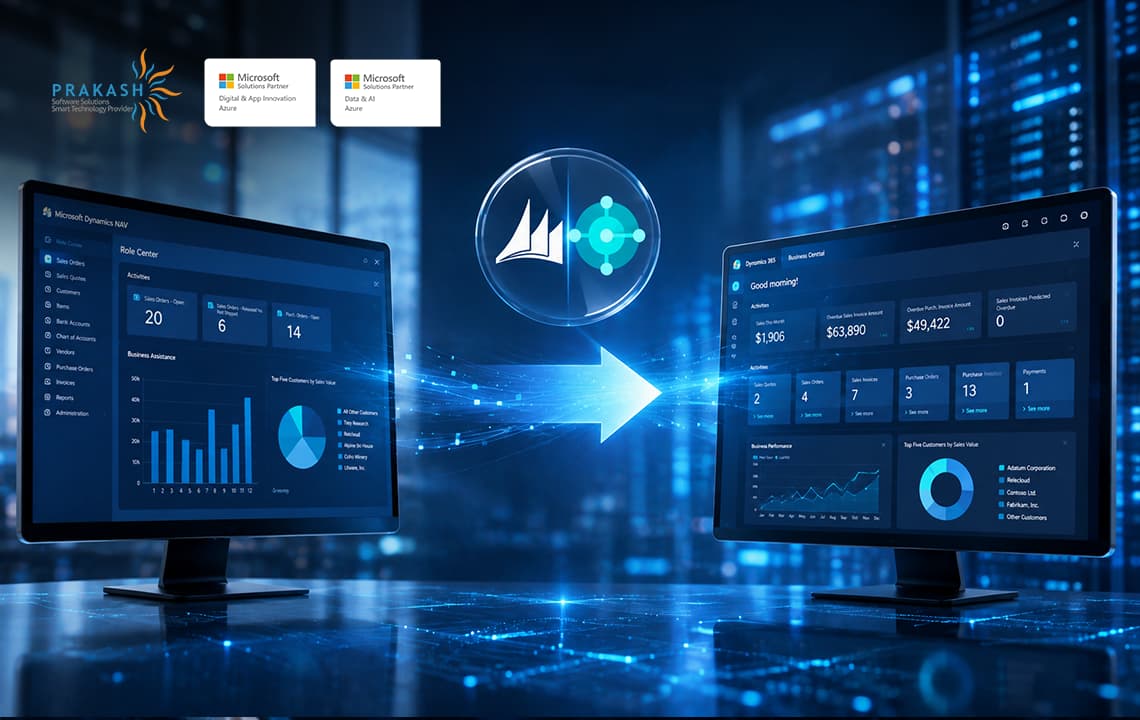
Although both Dynamics NAV and Dynamics 365 Business Central share the same product lineage, the latter is more than just a newer version of NAV. It brings familiar ERP capabilities into a modern, cloud-ready environment crafted to accommodate evolving business requirements.
Business Central retains the core ERP functionality of NAV while delivering a more modern foundation for integration, automation, and business growth.
The approach to customization has also changed. Traditional NAV environments usually rely on customized objects and C/AL development, while Business Central uses AL and extensions to add or modify features. This means existing NAV customizations need to be assessed and, where required, redesigned or rebuilt during migration.
So, moving from NAV to Business Central isn’t simply a matter of transferring the current system to a new platform. It is a chance to retain important business processes while simplifying legacy functions and adopting a modern ERP environment.
What Should You Assess Before Moving from NAV to Business Central?
Before starting a NAV to Business Central migration, it helps to understand what is currently running in the NAV environment. A proper evaluation helps uncover possible hurdles early and identify what should move to the new platform.
Start by reviewing the existing NAV version, database, customizations, third-party add-ons, integrations, reports, and user roles. Data also needs attention, particularly its quality, volume, and relevance. Ensure you clear outdated or unnecessary data before migrating to have a seamless transition and prevent legacy issues from carrying into Business Central.
Customizations deserve particular attention. Some may still be essential, while others may already be covered by standard Business Central functionality. Organizations should also review existing processes to find opportunities to simplify or enhance them instead of just recreating the same setup.
The goal is to create a clear picture of the existing NAV environment before deciding on the migration approach. This helps businesses determine what to keep, replace, rebuild, or retire and build a migration plan around actual business requirements.
How Does the Migration Process Work?
Transitioning to D365 Business Central from Dynamics NAV involves several stages, and the exact approach depends on the NAV version, data, customizations, and business requirements. A structured process can help lower the number of disruptions and make it easy to validate the new environment.
Assess the existing NAV environment
Start by reviewing the current NAV setup, its version, database, customizations, integrations, reports, and business processes. This evaluation helps find the appropriate migration path and uncover potential challenges early.
Prepare and migrate the data
Data should be reviewed and cleaned before migration. Businesses need to determine which financial, customer, vendor, inventory, and historical records need to be retained and prepare them for transfer to Business Central.
Modernize customizations
Existing NAV customizations should be reviewed rather than moved automatically. Required C/AL customizations may need to be converted into AL extensions, while functionality already available in Business Central can replace unnecessary custom development.
Test the new environment
Testing should cover migrated data, customizations, integrations, reports, workflows, permissions, and critical business processes. A test migration can help uncover issues before the production move.
Go live and validate
Once testing is finished, the final migration can be executed, and users can move to Business Central. Post-migration validation is important to confirm that key data, processes, and integrations are working as expected.
What Happens to Existing NAV Customizations?
Existing NAV customizations don’t always need to be carried over as they are. During the migration, each customization should be reviewed to determine the relevancy and how it can be handled in Business Central.
Some functionality may already be available as standard D365 Business Central features, making the old customization redundant. Other customizations may still be important to everyday operations but need to be redesigned using the platform’s extension-based approach.
A simple way to evaluate them is to classify customizations as:
- Keep: Functionality that remains essential to the business.
- Replace: Customizations covered by standard Business Central as built-in features.
- Rebuild: Functionality that is still required but needs to be developed as an extension.
- Retire: Customizations that are outdated, redundant, or no longer bring sufficient value to the business.
This review helps prevent unnecessary legacy complexity from being carried into the new environment. Rather than recreating everything from NAV, organizations can use the migration as an opportunity to simplify processes and make better use of Business Central’s standard capabilities.
What Challenges Can You Expect During the Migration?
A migration from Dynamics NAV to Dynamics 365 Business Central comprises many challenges, especially when the existing environment has extensive customizations, integrations, or years of accumulated data. By identifying these areas early, businesses can achieve a smoother transition, one that’s more manageable.
Legacy customizations can require significant review and redevelopment, especially when older C/AL-based functionality needs to be moved to Business Central’s extension-based model.
Data quality is another consideration. Outdated, duplicate, or inconsistent records can complicate migration and may affect the accuracy of the new environment.
Third-party integrations also need to be evaluated. Existing connections with external applications may require updates or replacement to work efficiently with Business Central.
Reports and workflows can present additional challenges when they depend on customized NAV functionality. These should be tested and, where necessary, redesigned for the new platform.
Finally, user adoption should not be overlooked. Changes to the interface, processes, and workflows may require user training and clear communication before go-live.
Planning for these challenges in advance can help reduce surprises and support a smoother transition to Business Central.
Benefits of Moving from NAV to Business Central
D365 Business Central provides a variety of benefits beyond modernizing the ERP platform. With the right migration approach, businesses can simplify operations, improve accessibility, and make better use of their data.
Greater accessibility:
Business Central provides cloud-based access, allowing users to work with business information from anywhere on any device that supports the platform.
Better integration:
Integration with Microsoft 365 and Power Platform can help connect ERP data with the tools employees already use and support more connected workflows.
Improved reporting:
Modern reporting and analytics capabilities can offer better visibility into financial and operational performance, helping businesses make more informed decisions.
Simpler customization:
The extension-based approach makes it easier to add or modify functionality.
Automation and AI:
Business Central provides access to newer automation and AI capabilities that can help reduce repetitive work and elevate everyday processes.
Together, these benefits can help organizations move beyond the limitations of a legacy ERP environment while creating a more flexible, future-ready, and scalable foundation for future growth.
One prominent firm that streamlines this process is Prakash Software Solutions. As a Microsoft Dynamics 365 Business Central partner, PSSPL provides NAV-to-Business Central migration, implementation, customization and extensions, integration, and ongoing support and managed services. They specialize in modernizing ERP environments, migrating data, adapting existing customizations, and building a Business Central environment aligned with the client’s evolving business needs.
Conclusion
By transitioning to D365 Business Central, firms not only modernize their ERP but also elevate accessibility, integration, reporting, and automation. With the help of careful assessment, data preparation, customization review, testing, and user training, businesses can seamlessly build a clean, flexible, and more adaptable environment that supports expansion.
With 7+ years of experience in Microsoft Dynamics 365 Business Central, working across development, technical architecture, and client support has provided hands-on experience with real-world business and technical challenges. A strong interest in technology drives a continuous focus on understanding how things work and finding practical solutions.
Working closely with Business Central projects and client requirements has also helped build a strong understanding of the platform and its capabilities. Informative content focuses on sharing practical knowledge, simplifying technical concepts, and making Business Central topics easier to understand and apply.