

Claude Code Setup Guide: Profiles, Files & Prompts for Maximum Efficiency
Summarize and save time
Make Claude Work Smarter, Not Harder
Do you ever feel like Claude takes up substantial tokens even for small and simple tasks?
You are not wrong and not alone. The fix to this challenge starts with a proper setup, and this guide will help you do just that. Understand the Claude profiler section, the essential files, and a few prompt tricks that can cut costs and boost output quality.
Make sure Claude understands your world, thinking as if you are training your AI teammate from day one. Watch your projects speed up with shrinking token bills and no vague answers. Perfect for AI development services looking to streamline workflows.
What is Claude Profiler and How to Configure It?
The foremost step is to set up your Claude profile because it’s the foundation outlining the behavior of Claude across all chats. Failing to do so can result in high token usage as Claude indexes everything from scratch.
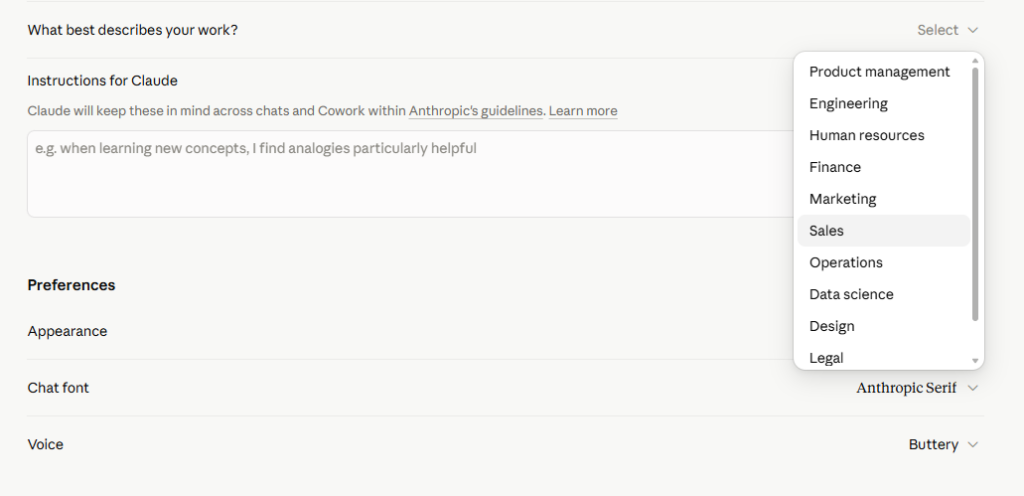
Choose Your Industry
Describe your industry to help Claude understand the instant context for your field. Pick from the list below:
- Engineering
- HR
- Finance
- Marketing
- Sales
- Operations
- Data science
- Design
- Legal
- And many more
Personal Preferences
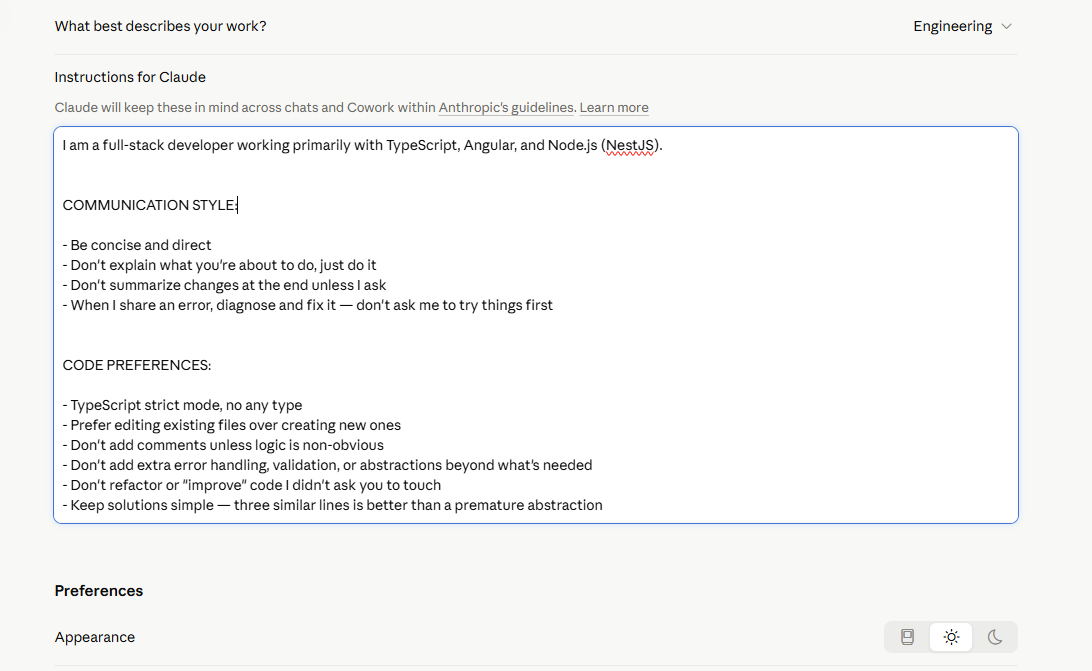
This is conveying your preferred style to Claude that will apply to all conversations within Anthropic’s guidelines. State the communication style, code preferences, general guidelines, etc. These preferences will set the plot for Claude, because each time you start a new session, these preferences will get pre-appended to the session.
If the prompt is vague, Claude doesn’t have any basis to answer, which is why it will go through a large indexing and utilize more tokens. Therefore, even the tasks that might seem small to you will consume high tokens due to the profile being the root cause.
Bonus Tips:
(1) Prompt creation:
If the organization you are working for has given you credentials to access the paid version, then use the free version first, create a chat, and give the prompt in the prompt XML tag. Now that the chat already knows how to act, provide your code to the Claude code. Get the refined output from here, go into the Claude code, and get the optimized output for the same.
(2) Low token usage:
Divide the task into small tasks so that each session only has small tasks. This will help reduce token usage because the session will not index through all the chats. All in all, for every new task, use a different session.
What is a Technical Specification Document?
A technical specification documentation is your project’s blueprint. This is a must-document detailing the architecture, goals, tech stack, and requirements. You can then attach and specify this document in your prompt to manage all further tasks and to-dos.
The ‘What’ and ‘Why’ of the CLAUDE.md file
The CLAUDE.md file is the heart of the Claude project. It’s a spatial markdown file that the Claude code reads automatically when the project starts. It knows where to start and what to do, and like preferences, it’s also appended to every new session.
The final output is determined by this CLAUDE.md file. Therefore, here you must add the basic tech flow, which lists the technical specifications, the tech stacks to be followed, and the expected output.
This is basically a synopsis of all the things you want Claude to know and follow so that you can stop the redundant task of telling Claude what to do in every session. But make sure that the CLAUDE.md file doesn’t have more than 350-400 lines to manage the token usage. For instances where the functionalities are larger than this limit, you can be smart to create markdown files and refer to those files in the CLAUDE.md file. This way, it will only be read when it is required.
What is a TODO.md file?
The TODO.md file is very helpful when you are working in teams. Supposedly, you have given instructions in the prompt that when a task is completed, you need to go to the CLAUDE.md file and mark the completed tasks so that the fellow teammate who joins the project can track the status of work easily.
So, the TODO.md file and the TASK-TRACKER.md file both track the completion or project progress. Make sure to add these to the initial prompt as well, because using this prompt serves as the pillar of the project.
In case the project is already developed, and you are new, and you want to wipe out the code that was earlier manually coded, what’s the option?
Several slash commands are provided by default in Claude. One such command is the /init command that indexes the whole code base and generates a CLAUDE.md file in the project where it’s not present.
Advanced Tip:
If you need to continue the same session for a larger task, you can use the /compact command. It compacts the context from the above code to free up the tokens. This is recommended only in case it’s a requirement to continue in the same session after 55% to 60% usage.
Therefore, for new developers, 3 useful files are:
- md file
- TASK-TRACKER.md file
- md file
What is the Design.md File?
In the skills folder, there are multiple skills that can be added, which include developer skills. So, prepare a design.md file where the designer needs to add the prompt to act as a designer. By using Claude’s skills and design.md file, Claude will create a project design for the specific code based on the earlier-created documents. Once the design is ready, all you need to do is click ‘push code’.
Once the project design is ready, it’s time to move to the project development phase by designing the front-end and back-end architecture.
What is the ARCHITECTURE.md File?
The ARCHITECTURE.md file consists of the overview, folder structure/directory outlining how the hierarchy is forming, module boundaries, naming conventions, architectural decisions, and data flow. Use one directory to create the front-end and back-end.
Module boundaries also need to be mentioned separately for front-end and back-end for architectural purposes.
Naming conventions mention the project structure and rules to follow for development purposes.
Architectural decisions specify the particular prompts to identify which decisions need to be taken and how Claude needs to act. For different phases, different data flows are also mentioned.
The next step is to add this ARCHITECTURE.md file to the particular project folder. You can also prepare a master prompt and paste it into the project folder. Now run the prompt, and Claude will refer to the mentioned files, such as ARCHITECTURE.md, Design.md, TODO.md, TASK-TRACKER.md, etc.
How to Give Effective Prompts for Better Results?
Vague prompts result in vague results. Therefore, ensuring effective ways of prompting can save time as well as token usage.
Begin the prompt by giving a context to the AI, in terms of stating what the project is about, what you are aiming to achieve, what the constraints are, what rules the AI must abide by, prompt for better bug resolving, and what the output format should be.
Also, make sure to set the boundaries for what things the AI will do and what things will be done by you. This lays out the prerequisite for getting better results from your prompt.
Bonus Tip:
When you are executing a new task, ask Claude to first create a plan. This plan will help you when you are unsure about the flow and help you verify what Claude is going to do. It gives you a chance to identify if you want to change or enhance something before execution.
Conclusion: Your Claude Setup Checklist
Ready to transform Claude from a token-heavy system to a streamlined and efficient project partner?
As a team using AI consulting services in New York, follow the specifics of this guide to help your team save tokens, ship faster, and collaborate seamlessly. Make Claude your best partner in the next project and watch the difference as the productivity soars.
I have managed SEO and digital campaigns in several industries, but the industries that have really benefited have one thing in common; the traffic we are driving is the right traffic, and each rupee spent relates to an actual business goal. It is easy to rank for a keyword and get clicks, but the challenge comes in when we need to ensure that these visits convert, and the team knows from which medium the visit came. It is here where most "set and forget" campaigns fail, and it is here where we concentrate most of our efforts.